




Self-Directed Study.
Self-Directed Study.
Self-Directed Study.
Home > Self-Directed Study
Created for all KS4 students to help simplify self-directed study, placing everything needed in one location. This is your space to take control of your learning and become the very best version of yourself.
Accessed via Sharepoint which is available as an app that you can download to your device, or through the web on your computers web browser*.
Think about where you are right now in your study journey, then choose the path that’s right for you:
Red – Just getting started? Don’t worry! We’ve got everything you need to build strong revision habits and feel confident.
Amber – You know how to revise, but now it’s time to step it up: create a clear timetable and focus on subject-by-subject goals.
Green – You’re smashing independent study already! Now let’s take it to the next level with strategies to refine, challenge and push yourself further
Wherever you are, everything you need to succeed is right here. Ready to get started? Click here to log in on a computer, or if you are using a smartphone or tablet, click on the links below to download the app and then sign in with your school Office365 account.
*The study hub requires you to log in with your Office 365 account to access. Not sure what your Office 365 account is? Click here to learn more.
We want our students to be engaged in their learning. A child at high school should not really have a reason to contact a parent during the day; however, if there is a genuine reason e.g. they have forgotten their packed lunch, a phone call can be made home from the school office. If a parent needs to contact their child in an emergency, they should contact the school office. If you need to contact your child during the school day, contact the main office on 01942 883796.
In case of a school emergency, we direct our students to safety first, following our school emergency procedures.
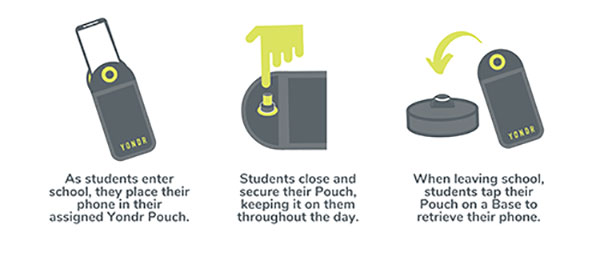
Students are in possession of their phone - in their Yondr pouch - for the entire school day. We will advise students to store the pouch safely in their school bag or blazer pockets.
If a student damages their Pouch or is caught on their phone, we will confiscate the phone and issue a sanction which is likely to be a suspension.
Note: Damage consists of any signs that the physical integrity of the pouch has been compromised, whether intentional or unintentional, as determined by the school or Yondr staff.
Damaged pouches will be charged to parents at a cost of £20.
They will be searched and wanded with a handheld scanner by a member of SLT. If they are found to have their phone on their person they will be expected to place it in their pouch. Refusal will be met with suspension.
If a student forgets their Pouch, their phone will be confiscated.
As per our previous mobile phone policy;
Parents will have the option to collect the phone at the end of the day. If parents do not collect the phone, the phone will remain in school until the end of the week or until the student has their pouch.
In Yondr’s experience, this almost never happens. All students funnel past the unlocking stations at the exits, they want their phones back and don’t forget to unlock their pouches. If they do arrive home with a phone in a pouch, they can either come back to school to unlock it, or have a phone free evening!
The unlocking process is quick and takes under a second per student.
As a privilege, Year 11 will be able to unlock their phones as they go off site at lunchtime; however, they will be expected to put their phones back into their pouches when they return to school for period 5.
Yes. There is an adapted version of the pouch which uses a Velcro fastener instead of a magnetic lock. This means the student still follows the policy, but the adapted pouch gives them easy access to their phone when required. If the student abuses this, they will face a sanction. We are already aware of these students.
Your Office 365 account username is your school network account username followed by @flhs.wigan.sch.uk
The password is the same password that you use in school to access computers.