
Laura Howarth-Kirke
Software Engineer and former student of Fred Longworth High School.
Laura Howarth-Kirke
Software Engineer and former student of Fred Longworth High School.
Laura Howarth-Kirke
Software Engineer and former student of Fred Longworth High School.
Home > Alumni > Alumni Stories > Other Alumni > Laura Howarth-Kirke
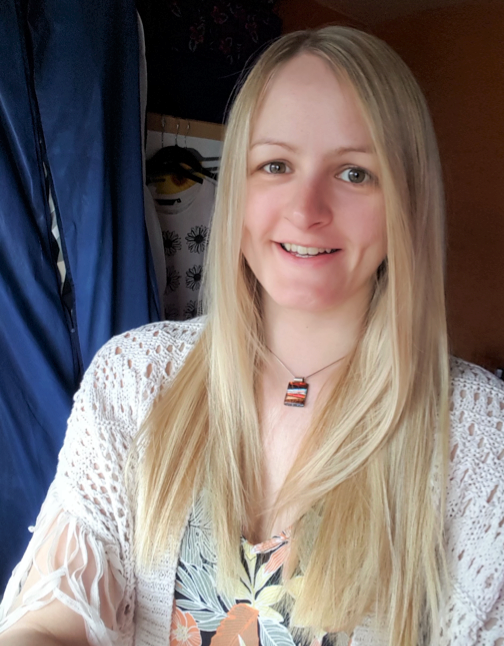
Laura Howarth-Kirke is an experienced software engineer and tech lead. Over her career, she has transitioned from working for major British media and public sector organisations to taking on senior engineering roles within prominent global tech companies.
In this article Laura talks about her memories of her time at Fred Longworth High School.
I left Fred Longworth in 2007 and went on to study computing, media studies and maths at College. I then went on to study for a degree in Computer Science from Manchester University. In my 3rd year I worked at IBM on an industrial placement where I was able to earn a salary.
When I left university I got a job on the BBC’s Graduate Scheme, and I helped to build the medal tables for BBC Sport’s Winter Olympics pages.
Most of my job is about solving problems! A problem might be that we need a concise way to show medal Olympic winners on the BBC Sport website, so you build a table to display it. I might be finding out why something doesn’t work and fixing it; e.g. why gold winners are shown but not silver? It’s very satisfying – like solving a Sudoku puzzle! I also spend most of my day talking! I talk about what we should build, how we should build it and discuss why things work the way they do.
The most challenging part of my job is that solving problems requires lots of patience. You might spend hours trying to figure out why some code you wrote isn’t working, only to find out it’s because you put a space in the wrong place!
It can also be difficult to keep up-to-date as the technology industry is also constantly improving with new technologies like Virtual Reality coming out. This means you have to be aware of the latest trends and keep your skills up to date so that you can write code for them. Sometimes this means reading blogs/teaching yourself new coding languages in your own time.
A typical day at work starts with a ‘stand-up’ meeting in the morning to find out what everyone is working on. Following that I may talk to a designer about what we’re building and decide what it should look like (e.g. What colour should the rows be in the Olympic Medal table on the BBC Sport website. I would then write the code needed and use associated automated tests using ‘pair-programming’ This is where 2 colleagues discuss the approach then one colleague writes the code whilst the other colleague watches and makes notes about improvements that could be made. I would then show my work to a tester and help to manually test the feature (e.g. Medals table) that I built. Finally I would deploy my work that the public can use it.
To get into a role like mine you could go down the academic route of studying Maths, the Science’s and ideally Computer Science at GCSE/A Level and Degree level. Alternatively you can teach yourself how to code and get an apprenticeship or work as a freelancer initially until you build up a portfolio of work.
My top tips for students looking to get into this industry are:
- Demonstrate your passion by coding/engineering at home like writing code for a Raspberry Pi
- Have a play around with some of the interactive websites that teach you to code whilst solving problems, like CodeAcademy
- Ultimately, study something you enjoy! That way you’ll put more effort into it, hopefully do well and get a career in it.